


How Often Should You Reboot Your Router? (And Why It Matters)

How often should you reboot your router? Most internet experts recommend rebooting your router at least once a month to clear its memory, refresh its connection to your ISP, and apply any pending firmware updates. If you notice slow speeds or connection drops, rebooting immediately is the first and most effective troubleshooting step. Some routers have a built-in schedule to auto-reboot at a set time each week.
You’ve probably heard the classic tech advice: “Have you tried turning it off and back on again?” That goes for your Wi-Fi router too. While routers are designed to run 24/7, giving them a periodic reboot can keep your home internet running smoothly and fix small glitches before they become big headaches.
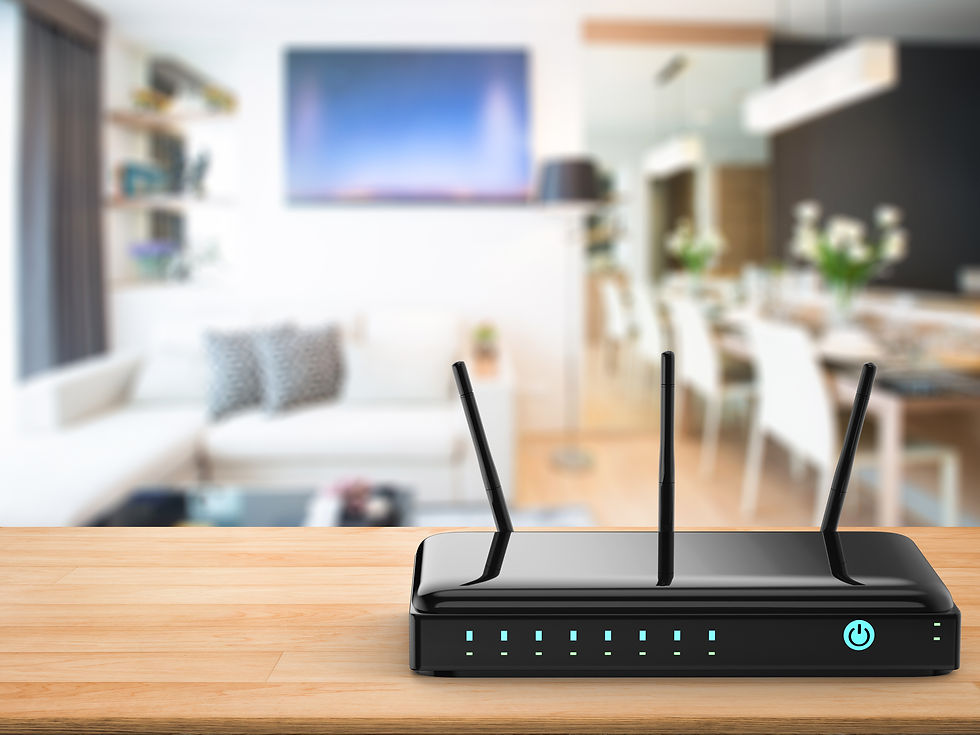
Why Reboot Your Router at All?
Think of your router as a small computer that’s always on. Over time, it can accumulate memory leaks, clogged processes, or outdated internal states that slow things down or disrupt connections. Rebooting:
Clears memory and temporary glitches
Refreshes your connection to your internet provider
Can improve speed and stability
May let firmware updates take effect
Can even help clear certain malware bugs
A restart doesn’t change your settings or Wi-Fi password, it just gives your router a fresh start.
Recommended Reboot Frequency
There’s no single “perfect” schedule, but experts and tech pros tend to agree on a few common guidelines:
Most households:
If your Wi-Fi is stable and you rarely notice slowdowns or disconnects, you can reboot only when you experience issues like buffering, dropped connections, or slow speeds.
If you are looking to stay ahead of the curve, once a month is a solid rule of thumb to help maintain performance.
Heavy users:
If you work from home, game online, or have many connected devices, you might benefit from rebooting every 1–2 weeks.
Some modern routers and mesh systems even let you schedule automatic rebooting, so you don’t have to think about it.
To Properly Reboot:
Unplug the router (and modem if separate).
Wait 10–30 seconds.
Plug it back in and give it a few minutes to fully restart.
Waiting a short time ensures all internal memory clears and connections reinitialize.
During this process, your internet temporarily goes offline, so it’s best done when you’re not in the middle of something important.
When You Really Should Reboot
Besides regular maintenance, reboot your router when:
Video calls go choppy
Streaming buffers or stalls
Devices can’t connect
Your speed seems slower than expected
Your Wi-Fi feels unstable compared to normal
A reboot is often the first troubleshooting step tech support suggests because it refreshes connections that may be misbehaving.
Router Reboot ≠ Reset
It’s important to know the difference:
Rebooting simply restarts the device and keeps your settings.
Resetting wipes all settings and returns the router to factory defaults.
You should only reset your router if you’re troubleshooting major issues or setting it up from scratch.
Quick Takeaway:
Good baseline: reboot your router about once a month or anytime you notice problems.
Heavy usage homes: consider every 1–2 weeks.
Troubleshooting: reboot anytime you notice problems.
A little maintenance goes a long way toward keeping your Wi-Fi feeling fast and stable.
Quick Reference Guide
Reboot Frequency | Best For | Benefit |
Once a week | Households with many devices | Consistent performance, clears memory buildup |
Once a month (minimum) | Average households | Refreshes ISP connection, applies updates |
When issues occur | All users | Resolves slowdowns and connection drops |
After a power outage | All users | Ensures clean reconnection to ISP |
After firmware update | All users | Activates new security patches |
Find the Best Internet Options at Your Address
Internet plan availability, pricing, and discount programs vary significantly depending on where you live. The fastest way to know exactly what is available at your home is to check your specific address.
Use the FreeConnect Search Tool — enter your address and instantly see every affordable internet plan, low-income discount program, and provider available at your location.
Frequently Asked Questions
Does rebooting your router improve internet speed?
Yes, rebooting your router can improve internet speed by clearing its memory (RAM), which fills up over time as the router tracks active connections. A restart also refreshes your router's connection to your ISP, which can resolve temporary slowdowns caused by a stale or degraded connection.
Is it bad to reboot your router too often?
No, rebooting your router is not harmful and does not damage the device. The only downside is a brief 1–2 minute interruption in internet service while the router restarts and reconnects. Rebooting once a week is perfectly safe and often beneficial for maintaining consistent performance.
What is the difference between rebooting and resetting a router?
Rebooting (or restarting) a router simply turns it off and back on, which refreshes its connection without changing any settings. Resetting a router restores it to factory default settings, which erases your Wi-Fi name, password, and all custom configurations. Only reset your router if you are troubleshooting a serious issue or setting it up from scratch.
